
How to Make Screenshots Look Professional
A plain screenshot can look unpolished and hard to share. With the right techniques — browser frames, backgrounds, and a bit of 3D — you can turn any screenshot into a production-ready visual in under 2 minutes.
You've built something great. You take a screenshot to share it on Twitter, in a README, or in a product launch. And then it looks… flat. A raw screenshot on a plain background doesn't communicate quality — even if the product is excellent.
This guide walks you through exactly how to make screenshots look professional, using techniques that take 2–5 minutes per image.
Why Raw Screenshots Look Unprofessional
A screenshot without context lacks visual hierarchy. Viewers don't know where to focus. There's no depth, no branding, and nothing separating the content from the background of whatever social post or document it's sitting in.
The goal isn't decoration — it's communication. A well-framed screenshot communicates that the product is polished, the team is serious, and the feature is worth looking at.
Step 1 — Add a Browser Frame
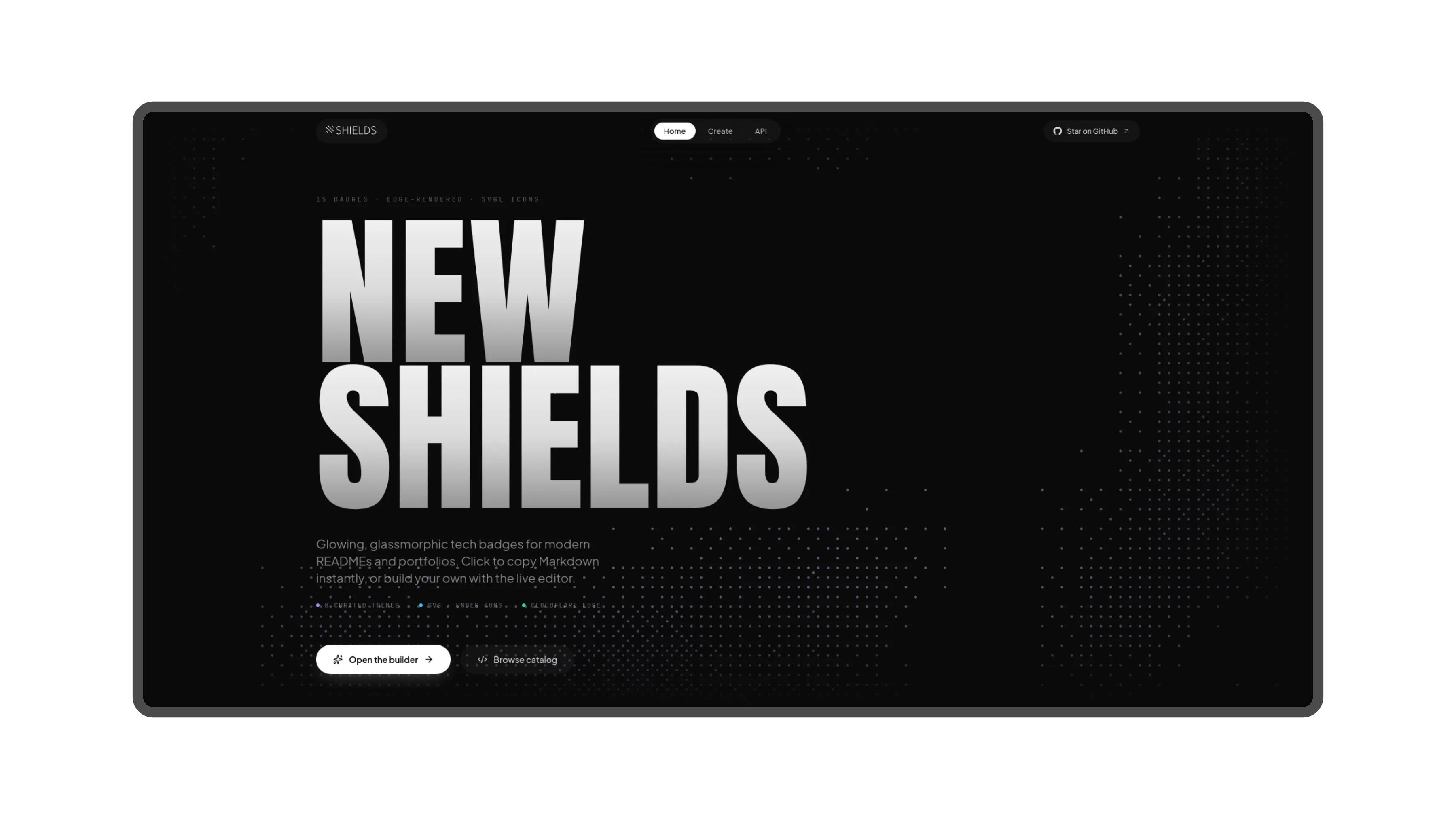
The single most effective upgrade to any screenshot is a browser or device frame. It gives your screenshot context ("this is a web app") and adds immediate visual structure.
Open Better Flow, upload your screenshot, and select a frame from the left panel:
- Safari frame — clean, minimal, works great for light UI
- Chrome frame — familiar, works for most web apps
- Arc frame — modern, curved, great for dark UI
- Outline frame — subtle, shows device shape without heavy chrome
Don't overthink it. Pick the one that matches your app's aesthetic. Safari and Chrome cover 90% of use cases.
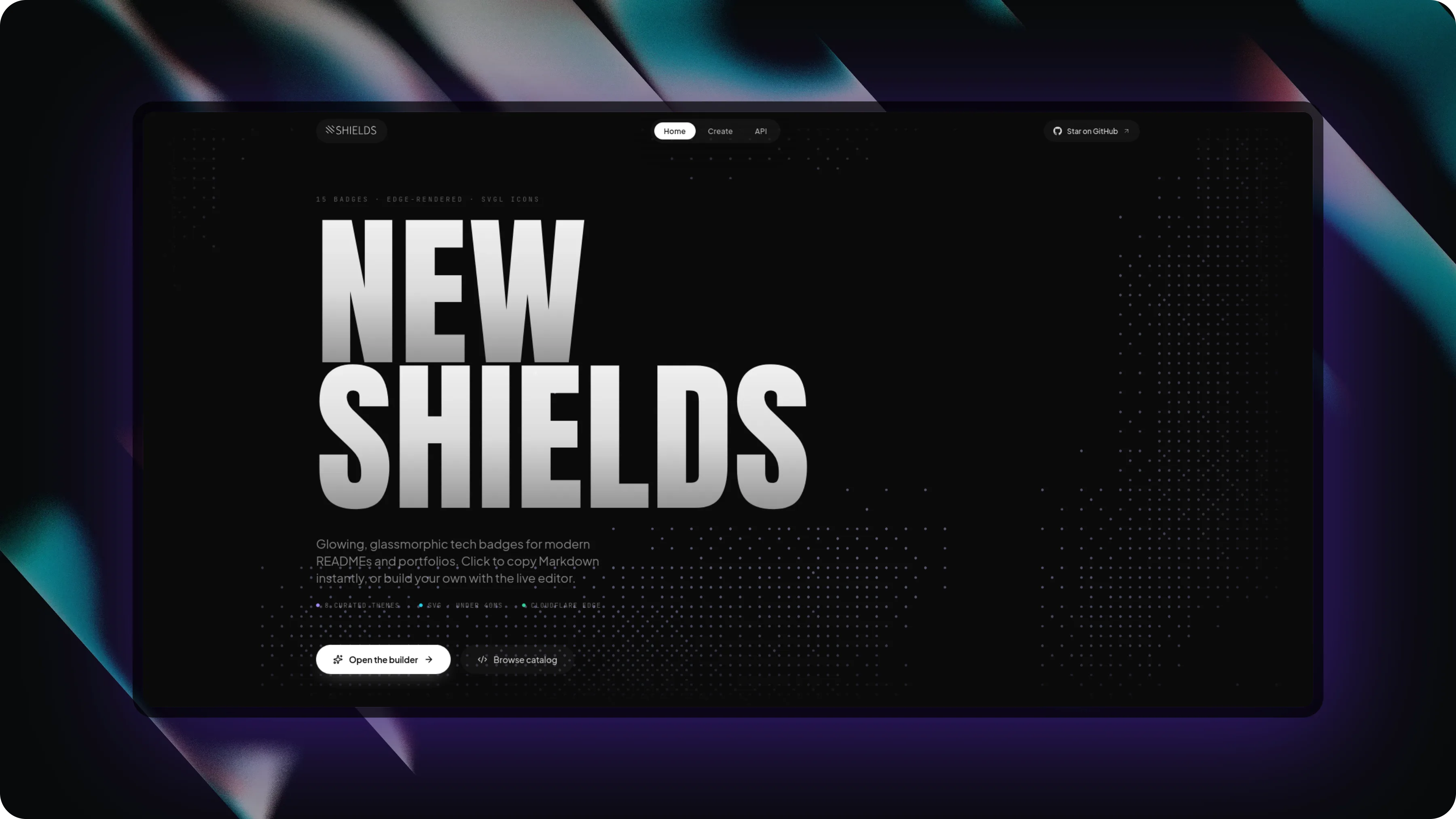
Step 2 — Choose a Background
A background lifts the screenshot off the page and gives it breathing room. Better Flow includes 100+ background options:
- Gradient backgrounds — smooth color gradients, the most popular option for social sharing
- Mesh gradients — organic, colorful, trending in 2025–2026 design
- Dark solid — great for dark UI screenshots, looks premium
- Noise/paper texture — subtle, works well for minimalist products
For developer tools or dark-themed apps, a dark mesh gradient or a deep dark solid works best. For light consumer apps, try a soft pastel gradient.
Step 3 — Add Depth with 3D Effects
Flat mockups are fine. But a slight 3D perspective tilt makes screenshots look dramatically more polished, especially for hero sections or product showcases.
In Better Flow, the 3D transform panel lets you:
- Tilt the screenshot on the X or Y axis (perspective)
- Add a depth shadow beneath the frame
- Combine with a blur background for a "floating" effect
A 10–15° tilt is usually enough. Too much makes it unreadable. The goal is depth perception, not a product render.
Step 4 — Export at the Right Size
Always export at 2x or higher for sharp results on retina/HiDPI displays. Platforms like Twitter, LinkedIn, and Product Hunt all benefit from high-resolution images.
Better Flow exports at up to 5x scale (4K resolution). For most use cases, 2x or 3x is ideal:
- PNG — for sharing on social media, README files, and documentation
- JPG — for email or anywhere file size matters more than transparency
- MP4 / GIF — for animated showcases, Product Hunt, or landing pages
Step 5 — Animate for Product Launches
If you're sharing on Product Hunt, Twitter, or in a landing page hero, an animated screenshot gets significantly more engagement than a static image.
Better Flow's timeline editor lets you animate:
- Fade-in entrance effects
- Slide from bottom or side
- Scale and bounce
- Background color transitions
Export as MP4 for the best quality, or GIF if you need broad compatibility (README files, emails).
Quick Checklist
- ✓ Added a browser or device frame
- ✓ Applied a gradient or mesh background
- ✓ Added subtle 3D tilt or shadow
- ✓ Exported at 2x or 3x resolution
- ✓ Animated if sharing on social or Product Hunt
That's it. Five steps, under 5 minutes, and your screenshots will look like they belong on a product page — not a Jira ticket.
Open Better Flow — it's free, no account required, and runs entirely in your browser.
Try Better Flow for free
No account, no uploads, no watermarks. Open source screenshot studio.
Open Better Flow →